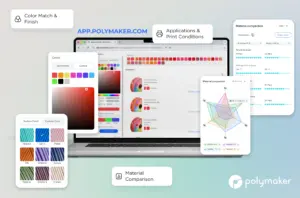
Finding the right filament used to mean opening fifteen browser tabs, cross-referencing data sheets, and still ending up with a spool that wasn’t quite right. The Polymaker Web App - available now at app.polymaker.com - was built to fix that. No sign-in required, mobile-friendly, and packed with tools that take you from colour instinct to print-ready material in minutes.
Choosing the right filament is the foundation of successful 3D printing. With so many options available, it’s easy for beginners to feel overwhelmed. Each filament type brings its own strengths, making it suitable for different projects and user needs.
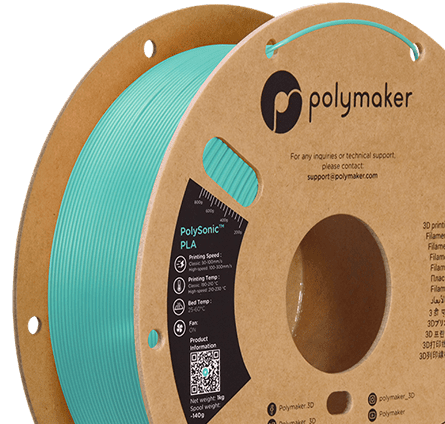
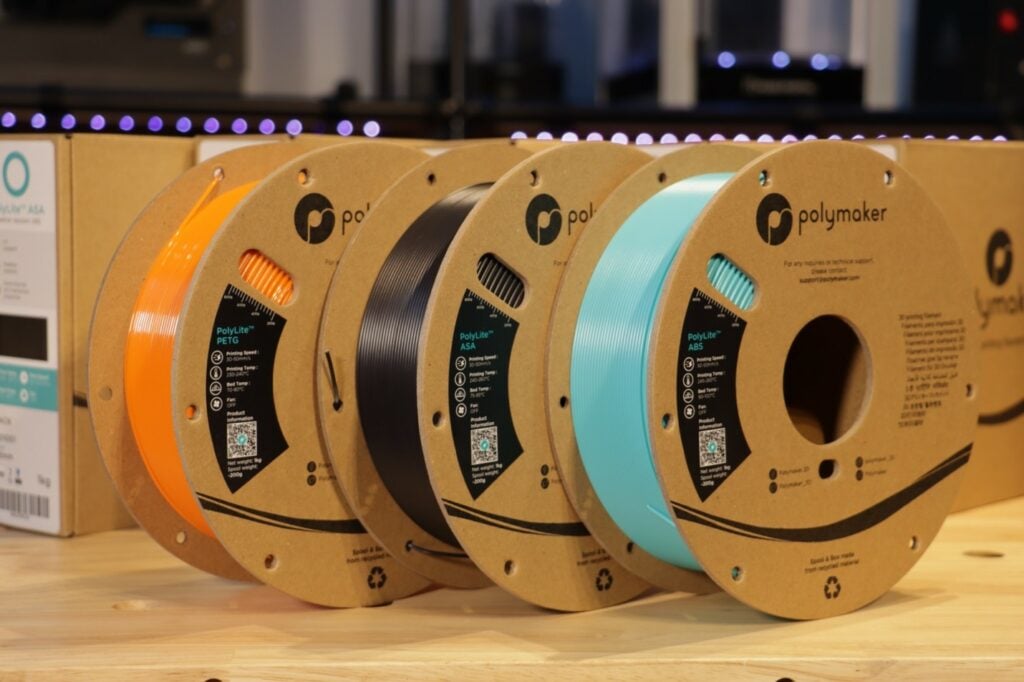
PLA is the go-to choice for many, especially those just starting out. It’s inexpensive, easy to print, and delivers excellent results for decorative models, prototypes, and everyday projects. Its forgiving nature means fewer failed prints and smoother layer lines, making it ideal for users who want reliable quality without constant tweaking.
For those looking to create more durable and functional items, PETG stands out. This material is both tough and resistant to impact, making it perfect for phone cases, mechanical parts, and objects that need to withstand daily wear. PETG prints are less brittle than PLA and offer a good balance between strength and flexibility.
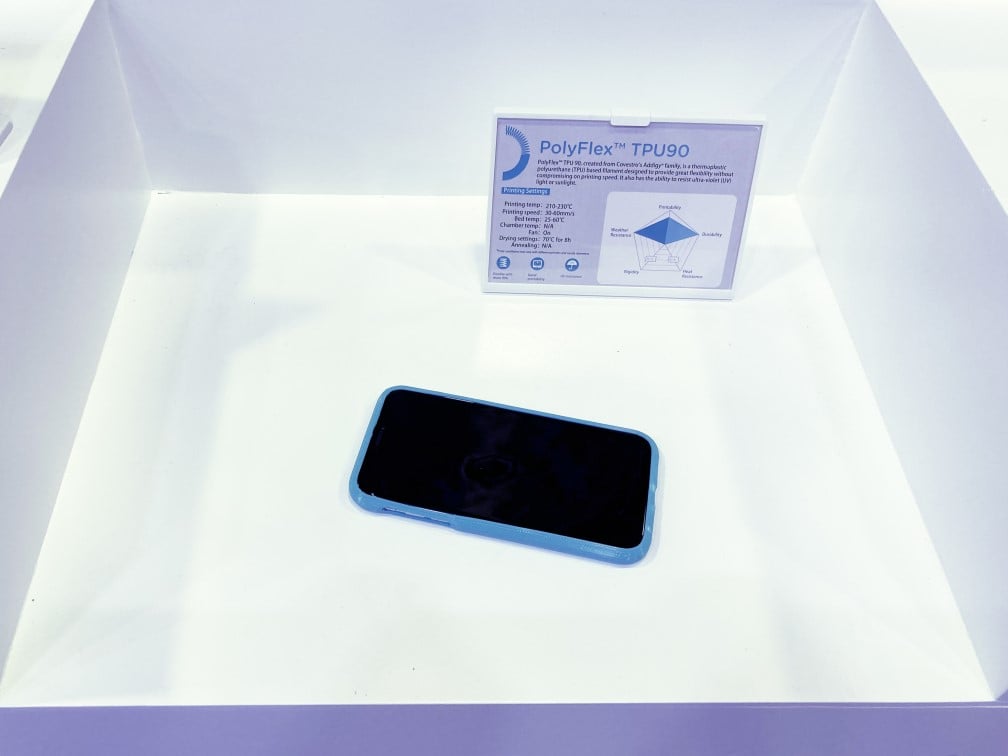
If your project calls for flexibility, TPU is the best filament for the job. This flexible filament is perfect for creating gaskets, phone cases, and wearables that need to bend without breaking. TPU’s unique properties allow users to print items that are both durable and elastic, opening up new possibilities for creative and functional designs.
Understanding the characteristics of each filament type helps users match the right material to their project, ensuring the best results and minimizing frustration. Whether you’re printing decorative models, functional phone cases, or flexible gaskets, choosing the right filament is the first step toward 3D printing success.
Most material decisions don’t start with a data sheet. They start with a colour.
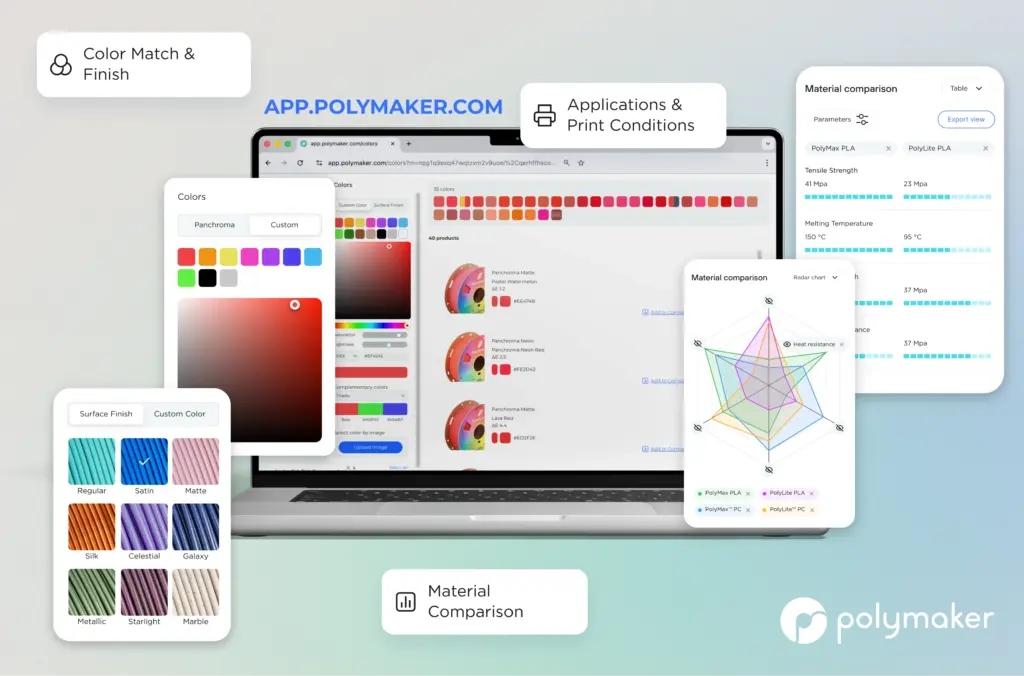
Whether you’re matching a brand identity for a client job, building a cohesive product line, or making sure your home décor print doesn’t clash with the shelf it’s sitting on. The Colour Selector is where your search begins. Select a base hue, then refine it by clicking within the colour square. The app uses the Delta E (ΔE) method to calculate the closest filament match. A scientifically validated measure of perceptual colour difference. A ΔE below 3 is a strong match; below 1 is effectively indistinguishable to the human eye.
You can input values directly using RGB, CMYK, HEX, or HSL, whichever format your design tool outputs. Working from a photo or brand asset? Use the upload image feature and the eyedropper tool to sample an exact colour from any image file.
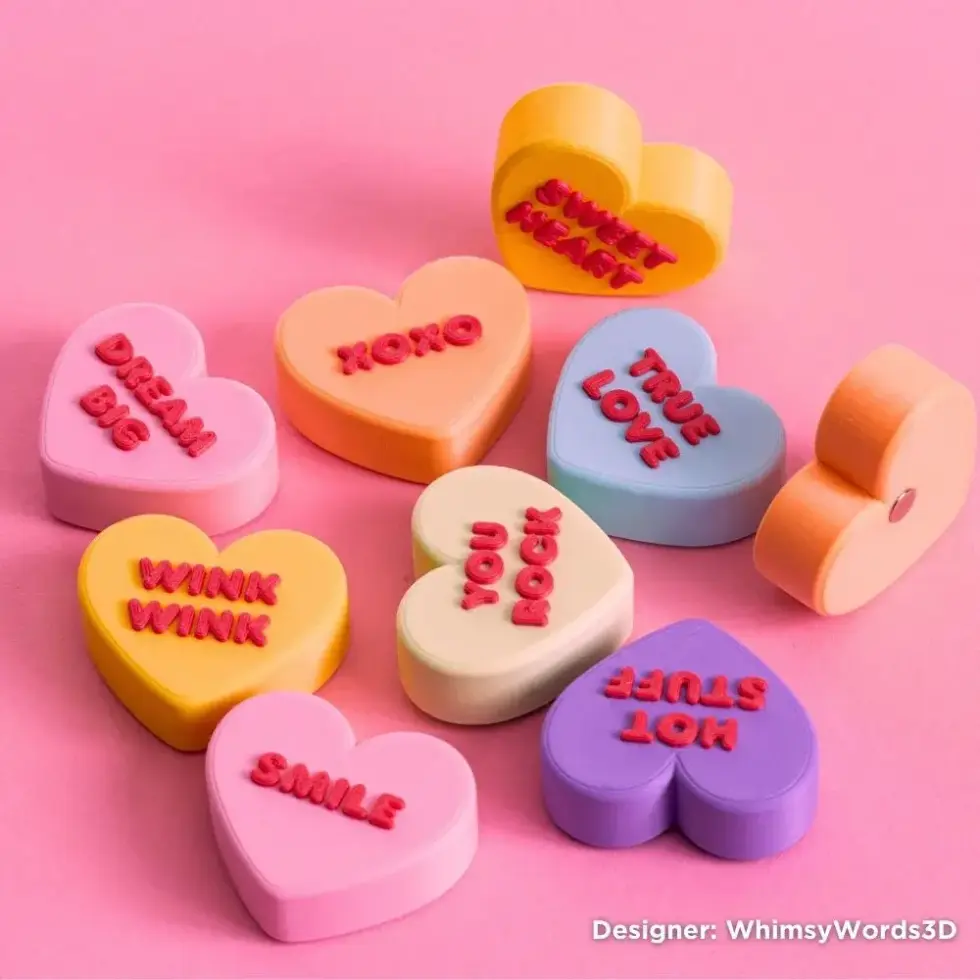
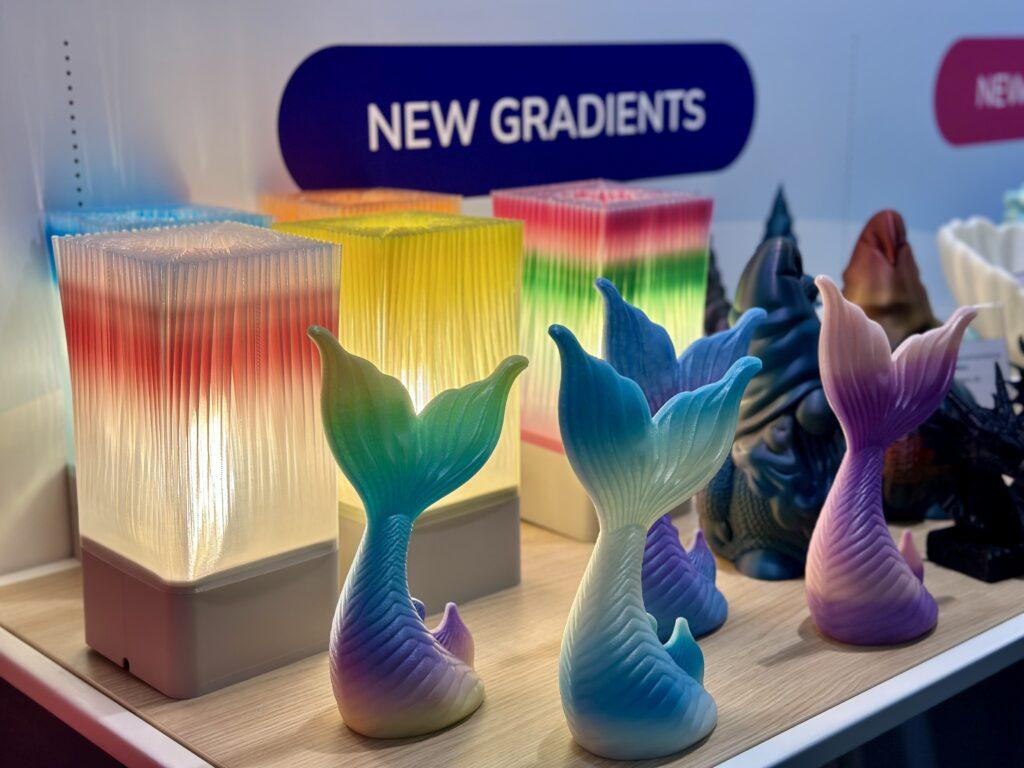
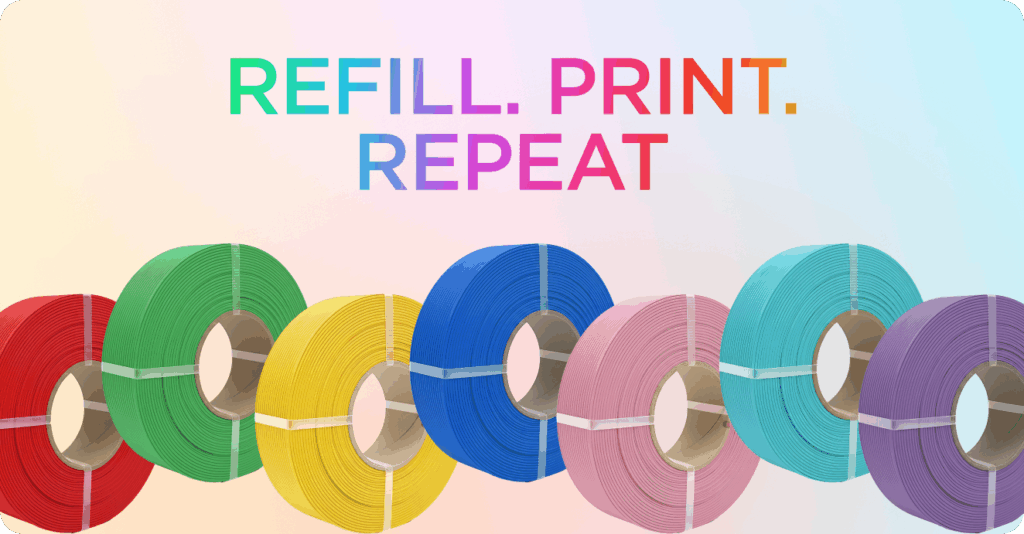
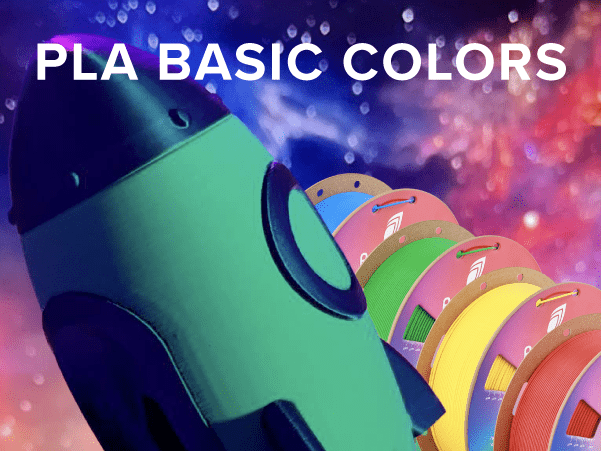
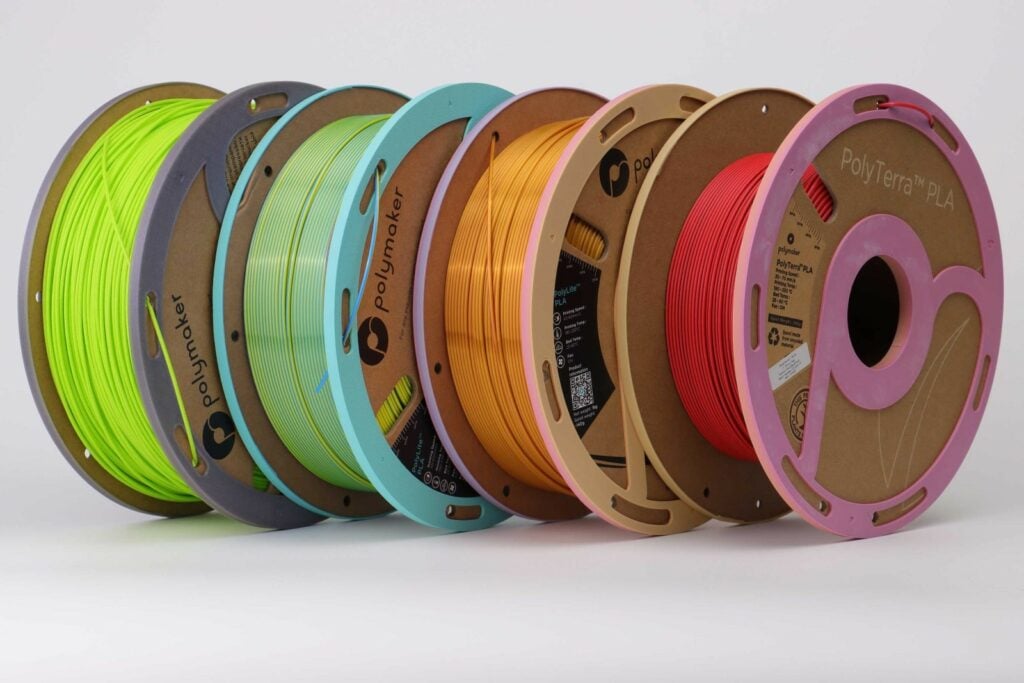
The app also generates complementary colour suggestions, mathematically selected to pair with your primary choice. The color selection process is optimized to help you achieve the best match for your design needs. For custom projects, you can mix and match different filament colors or spools, giving you flexibility and variety. Filaments are available in special finishes such as glitter, silk, and matte, allowing you to create fun and visually appealing prints. Whether you need a subtle accent or a bold contrast, building your palette here means you’re never printing blind. You can explore and purchase a wide range of 3D printing filaments directly through our website for added convenience.
One of the most common questions Polymaker receives is: "Do you have a profile for my printer?"
The answer is at presets.polymaker.com and it's growing fast. With over 450 printer-and-material combinations already available, and new ones being added continuously, this is the most comprehensive free preset library Polymaker has ever offered. Supported slicers currently include:
Download individual presets or grab the full bundle, then import the JSON files directly into your slicer using the step-by-step Orca Slicer import guide. That's it — calibrated settings, immediately available, no manual tuning from scratch.
Choosing between PLA and PETG is the wrong starting question. The right question is: what does your part actually need to do?
The Material Comparison section lets you evaluate filaments across mechanical, thermal, and physical properties using three purpose-built views:
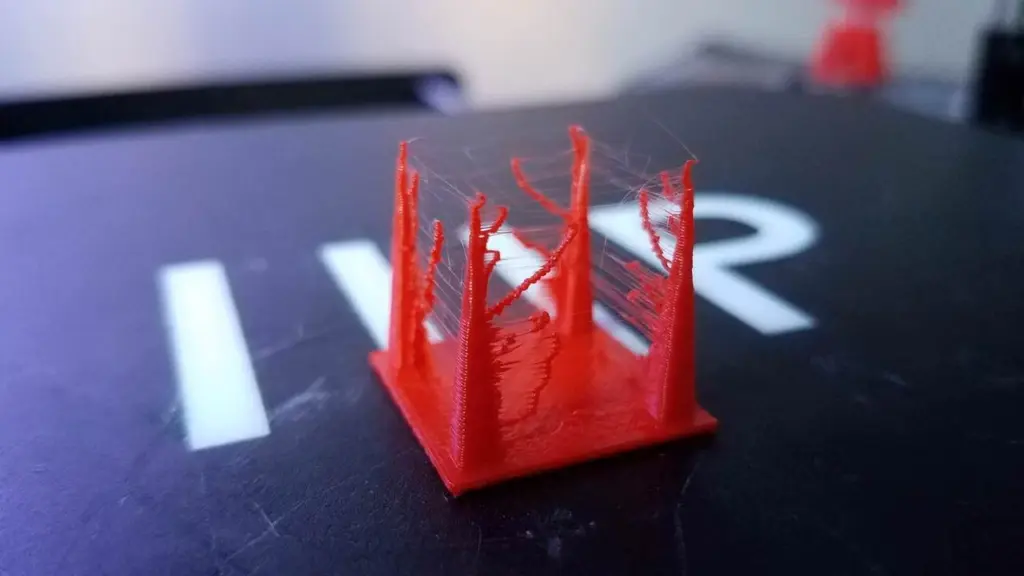
You can also evaluate how likely a filament is to break under stress or if it is prone to issues like warping or stringing, helping you make informed decisions about durability and print quality.
Every view is shareable: just copy the URL and send it to a colleague — they’ll see the exact same comparison you built.
These tools help you find the filament that best suits your project's requirements, whether you need high strength, minimal warping, or compatibility with specific printers, and pair perfectly with Polymaker’s sustainable, high-quality filament range.
The Applications & Print Conditions section flips the selection process on its head. Instead of browsing a material catalogue and guessing, you start with your end use. Load-bearing structural component? Impact-resistant housing? Flexible gasket? Cosmetic display piece?
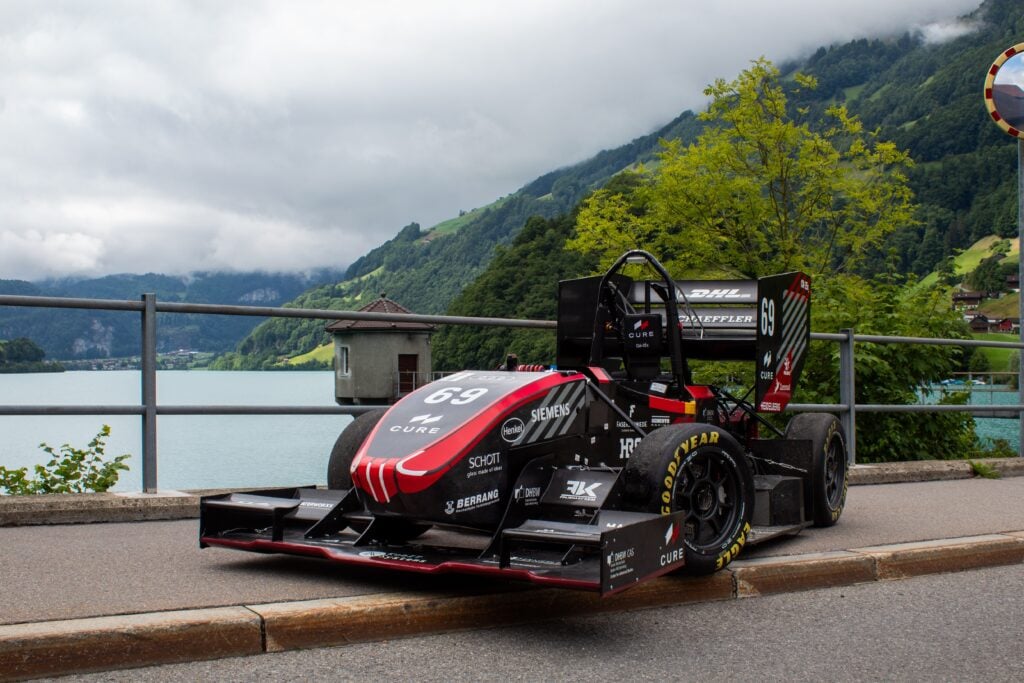
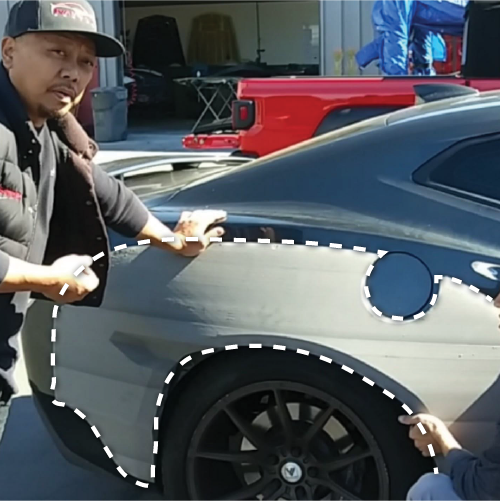
Select your application e.g. Automotive, and the app surfaces the most popular materials other users are already printing with for that exact use case. Then use the bed temperature slider to filter results down to what's actually printable on your machine. If your bed maxes out at 100°C, materials requiring more are automatically filtered out. No surprises after the spool arrives.
Even with the best filament and a well-tuned printer, 3D printing can sometimes throw a curveball. Common issues like warping, visible layer lines, and poor bed adhesion can affect print quality, but most problems have straightforward solutions.
To prevent warping, always use a heated bed and make sure your print surface is level and clean. Warping often occurs when the first layers cool too quickly or don’t stick properly, so maintaining the right bed temperature is key. For layer lines that are too visible, try adjusting your print settings—lowering the layer height and slowing down the print speed can lead to smoother results.
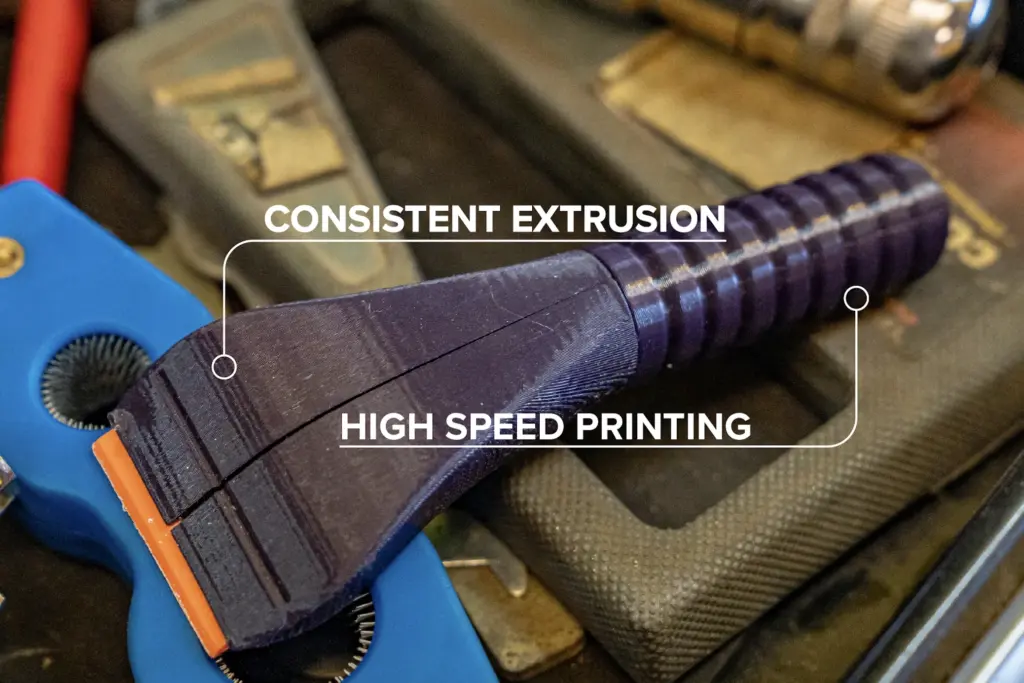
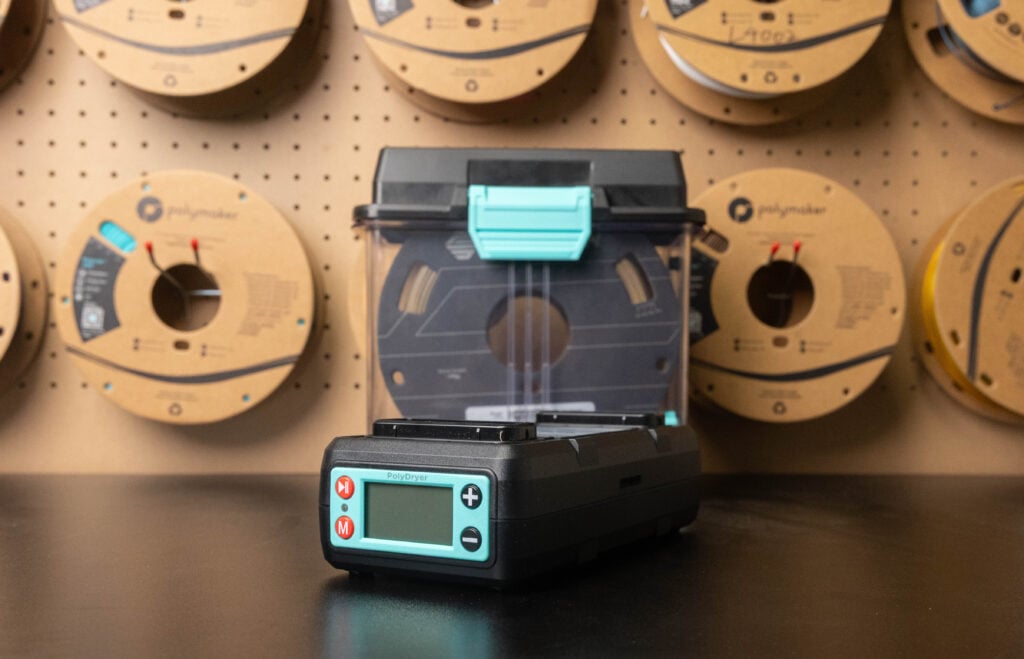
If you’re struggling with poor adhesion, adding a brim or raft in your slicer profiles can help, as can cleaning the print surface before each job. Using a direct drive extruder can improve filament control, especially with flexible materials, while storing your filament in a sealed bag helps prevent moisture absorption that can lead to inconsistent extrusion and print defects.
Regularly updating your slicer profiles and choosing high-quality filament from reputable brands are essential steps for reliable, excellent results. For in-depth guidance on dialing in settings and solving edge-case problems, you can turn to the Polymaker Wiki 3D printing knowledge base. By understanding and addressing these common issues, users can fine-tune their settings, minimize waste, and enjoy a smoother 3D printing experience every time.
For those who want to understand the why behind the material choices, the Polymaker Wiki at wiki.polymaker.com covers everything from beginner print basics to advanced material science and print tuning. It's available in 10 languages and continuously updated. It's a genuine reference resource, not a marketing FAQ.
If you'd rather just ask a question, the integrated AI chatbot is trained on the full Polymaker knowledge base and is genuinely useful for both filament-specific queries and general 3D printing advice.
The Polymaker Web App is free, requires no account, and works on any device. Head to app.polymaker.com to explore it and presets.polymaker.com for your slicer profiles.















Please fill in the form below or if you have other questions are not included in the form, please contact us through [email protected]. We will get back to you soon.
Please fill in the form below or if you have other questions are not included in the form, please contact us through [email protected]. We will get back to you soon.